Chris Dielschnieder
SOFTWARE DEVELOPER
PROJECT HISTORY
Fastify Vue Electron Aveva Pi Esri Integrator
Kvale Consulting | Project Dates: Jan 2026 - Oct 2026
TL;DR It builds background worker processes running on timed intervals, fetches data from a source API, and sends it to a target API. This is the UI.
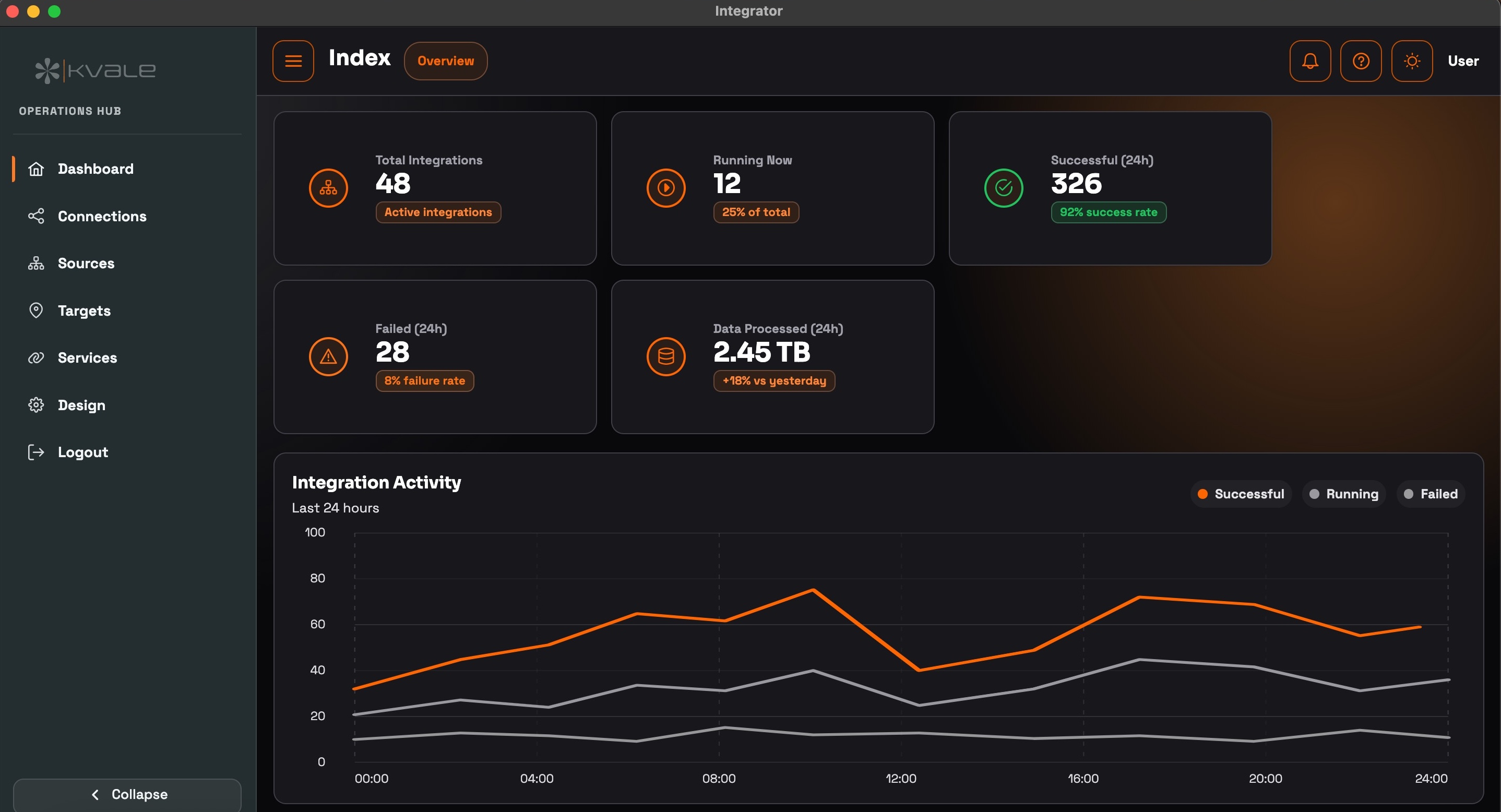
This was a project started from scratch, and I wasn't given much detail. Just a few rough project parameters, and a few suggestions about what would be nice to have. I set to researching and brainstorming until I could put down some project requirements before writing any code.
- Functional Requirements: Create a design document outlining requirements
- Architecture: Decide on monolithic vs client/server
- Tech Stack: Choose languages and frameworks
- Database: Create ERD diagrams for database tables for a then-unknown database type - MSSQL was the eventual choice
- Deployment and Production: Consider how the production environment will affect the design
Functional Requirements
-
Primary task #1 - Fetch PI web API JSON data on timed intervals
- Show the user all available JSON assets and make them fetchable.
- Allow the user to select the data they want and save the choices as run settings.
- Activate the run settings on timed intervals. Run the intervals as background tasks.
-
Primary task #2 - Shape the JSON payload and send it to the target
- Allow the user to choose from a list of targets where to send the payload.
- Clean, flatten, and process PI API data to match the shape of the chosen target. Send the payload.
Architecture
The decision was then to choose between two main designs:
- Monolithic: Bundle all processing and operations together in a single unit using C#
- Client/server: Create separate back and front ends using web development technologies
We chose #2. Why? Plain HTML/CSS is the way to go for complex UI work.
Tech Stack
Finally, the fun part! Deciding which languages and frameworks to use.
Choosing the client/server design meant we were building a web app disguised as a desktop app - let's keep it all in TypeScript.
-
Electron: C++ binary wrapper allowing us to run our frontend web
code natively
- Runs a Chromium browser instance that steers the web development code into C++
-
Fastify: Node.js Express-like framework used to build our backend
REST API
- Known for speed, which was important since the app is very background-task heavy
- Built-in APIs like decorators and plugins keep things simple and efficient by default
-
Vue.js: JS frameworks offer the best developer experience for
building UI
- Advertised as the fastest of the virtual DOM frameworks, and works well with Electron
-
Prisma: Modern ORM handles database interaction
- If we needed to support different databases, we didn't want to rewrite our own SQL for each one
- Prisma ORM supports all the major databases
- PrimeVue: Vue UI component design suite
Deployment and Production
It is deployed to a client's personal server isolated behind a firewall or proxy, making it inaccessible from the open internet. All our design decisions needed to consider this.
Every deployment is a separate isolated instance. In this single-tenancy model, each installation needs to provide the entire processing and database apparatus for all app operations.
Shipping the frontend Electron side is pretty standard. The challenge was the Fastify backend. It needed to ship as an executable wrapped by some C#, making it runnable as a Windows service. The client then brings their own MsSQL database.
Building a DIY Dynamometer
Lytehorse | Project Dates: May 2022 - Aug 2022
TL;DR Dynamometers are used to test vehicles. They start at around $25,000. The goal here was to use off-the-shelf components to build one ourselves.
There were three main parts to this project.
- Prototyping and Electronics: Metal stuff, circuits, and making motors turn
- Arduino Programming: Programming embedded C++ in Arduino IDE
- Building Dyno Application: Main Python software to run the dyno
Prototyping and Hardware
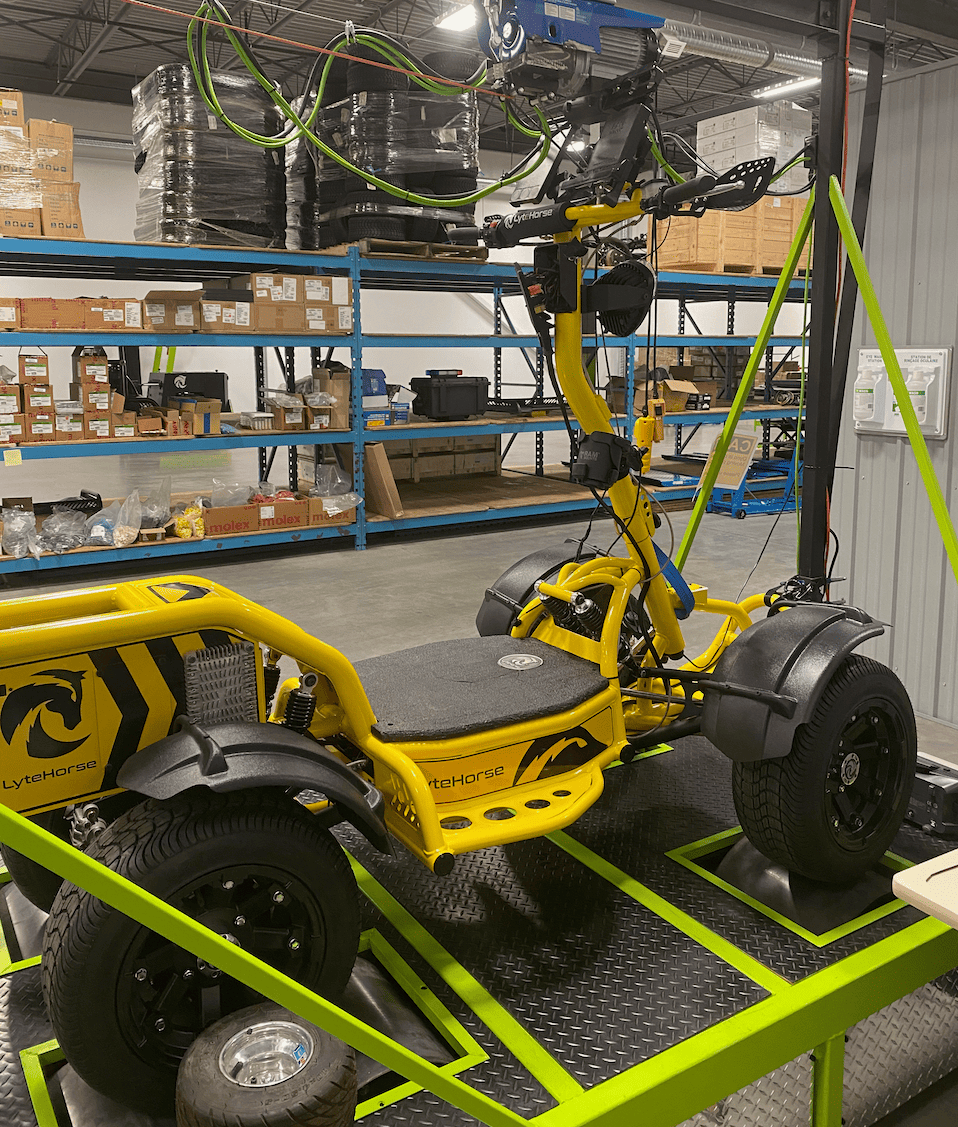
We only achieved very basic controls for throttle and braking, but it was possible to control the vehicle and dyno separately.
The machine's construction was a solid metal frame inset with four 12-inch rollers used to move the mounted vehicle - essentially these are what made this a dyno. The vehicle sat on top and drove.
Each roller was connected to an electric motor for drive, brake, and torque/HP testing. The motors connected to Kelly motor controllers, which then connected to an Arduino. This was our way to communicate - everything used serial.
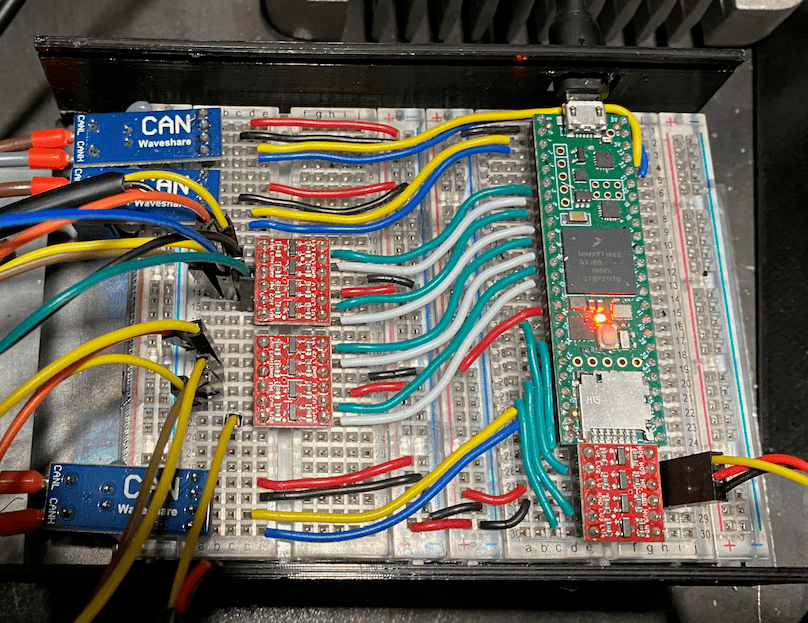
On the user's end, a Python program used our custom UART-based protocol to send and receive communications over serial. We used a Teensy microcontroller, which is a souped-up Arduino. See image below. It had eight serial ports, which we needed to handle all asynchronous communication between devices.
I'm writing this years after this project ended and don't remember what everything here connected to anymore. There was much cool circuitry stuff happening, but this is all lost to the sands of time.
Arduino Programming
The gist: the computer sits on one end, the motor controllers on the other, and all comms pass through the Arduino. So the Arduino had to handle bidirectional I/O from both sources:
- Source In/Out: Python desktop app <=> Arduino
- Target Out/In: Arduino <=> Motor controllers
1. Source In/Out
The app instigates the communication and the Arduino listens by default using the void loop() API. Incoming messages are broken apart so we can identify what the instructions are. These are executed in part 2.
These needed to be fed into a simple state machine. To handle this, we used something like the JBD BMS Protocol which is from an auto industry battery and electrics company. Our version uses the same start and end byte patterns, but the rest is a mishmash.
Shown here is the scratch protocol. See how it's bookended by the JBD BMS hexadecimal byte patterns [0xDD] and [0x77]? This is the basis of the state processing.
            /* Message Format
             *  Byte: 1       | Start bit [0xDD] (1 byte)
             *        2:7     | Message Header (6-bytes)
             *        8:X     | Message Data (variable byte Size)
             *        X+1:X+2 | Message Checksum (message header + data size)
             *        X+3     | End bit [0x77]
             */
Each stage is a different state trigger for a different action.
            switch (rx_state)
            {

            case UART_RX_STATE_IDLE:
            {
              uint8_t data_in = UART_HOST_RX_SERIAL.read();
              // Check for the start bit pattern
              if (data_in == UART_RX_START_BIT_PATTERN)
              {
                // Move to the Header receive state
                set_rx_state(UART_RX_STATE_HEADER);
              }

              break;
            }
            case UART_RX_STATE_HEADER:
            {
              // Read the bytes into the header structure
              UART_HOST_RX_SERIAL.readBytes((char *)&rx_header, sizeof(msg_header_t));
              // Move to the Data receive state
              set_rx_state(UART_RX_STATE_DATA);

              break;
            }
            case UART_RX_STATE_DATA:
            {
              // If all of the expected data has been received
              if (rx_data_idx >= rx_header.len)
              {
                // Move to the Chksum receive state
                set_rx_state(UART_RX_STATE_CHKSUM);
              }
              else
              {
                // Add the received data to the buffer
                rx_data[rx_data_idx] = UART_HOST_RX_SERIAL.read();
                rx_data_idx++;
              }

              break;
            }
            case UART_RX_STATE_CHKSUM:
            {
              // Read the bytes into the checksum structure
              UART_HOST_RX_SERIAL.readBytes((char *)&rx_chksum, sizeof(msg_chksum_t));

              // Compute the checksum of the received header and data
              msg_chksum_t msg_chksum = 0;
              uint8_t i;
              uint8_t *rx_header_data = (uint8_t *)&rx_header;
              for (i = 0; i < sizeof(msg_header_t); i++)
              {
                msg_chksum = bsd_chksum(msg_chksum, rx_header_data[i]);
              }
              for (i = 0; i < rx_header.len; i++)
              {
                msg_chksum = bsd_chksum(msg_chksum, rx_data[i]);
              }

              // Compare the calculated and received checksums
              if (msg_chksum == rx_chksum)
              {
                // If match, move to the End bit receive state
                set_rx_state(UART_RX_STATE_ENDL);
              }
              else
              {
                // Otherwise, reset to the Idle state
                set_rx_state(UART_RX_STATE_IDLE);
              }

              break;
            }
            case UART_RX_STATE_ENDL:
            {
              uint8_t data_in = UART_HOST_RX_SERIAL.read();
              // Check for the end bit pattern
              if (data_in == UART_RX_END_BIT_PATTERN)
              {
                // Message is valid, pass to process function
                handle_uart_rx_message(rx_header.msg_id, rx_header.bus_id, rx_header.len, rx_data);
              }

              // Move back to Idle state to receive next message
              set_rx_state(UART_RX_STATE_IDLE);

              break;
            }
            default:
            {
              // In an invalid receive state, move back to Idle
              set_rx_state(UART_RX_STATE_IDLE);

              break;
            }
            }
2. Target Out/In
Once the message has run through all the states and is validated, it hits the function handle_uart_rx_message. This sends the instruction output to the controllers by analogWrite on the output pins. We set the desired intensity and the motor controllers turn the bits into something physical. This is what allows us to plug in the vehicle and run it from a computer.
How the machines' controller operations actually receive, parse, and turn the signals into work is another gap, lost to those same time sands.
            void set_electric_speed_control_throttle(uint8_t id, uint8_t throttle)
            {
              throttles[id] = throttle; // Set the throttle level for this channel
              throttle_time_ms[id] = millis(); // Record the current time in milliseconds
              analogWrite(throttle_pins[id], throttles[id]); // Update the PWM duty cycle on the pin
            }
Dyno App
This was the desktop application that operated the dyno. I worked on this section the most.
It was built using Python Tkinter. This was chosen before my time. Tkinter is great because it's built into Python and works well for simple GUIs. It was not the best choice for a complicated multi-page app like this. I was so frustrated that I built tkinter-devtools so I didn't need to keep restarting the app to see every single little change.
Tkinter is a steam engine or wood-burning stove. Reliable, but not a modern tool for building software.
- In a world of components, it still uses "widgets" to construct pages
- Widgets must be "packed" just to show up, and most page geometry must be handled manually
- And styling...fuhgeddaboudit.
There were three main modules:
GUI
In the spirit of client-server, we wanted the UI separate for modularity.
The app needed to handle routing and navigation, which Tkinter has no notion of, so I split it into "screens." This made the file structure easier to navigate. Each screen was like a component, very much designed to be React-like.
Business Logic
Signals from the GUI were passed here. First, we checked that the serial ports to the Arduino were open.
Second, using the GUI input, we constructed a routine to run for throttle, brake, or auxiliary. Using the start-end bit protocol from before, Python struct converted our messages to C, and packed the message as binary.
These binary messages were sent over serial which the Arduino was listening for. To keep the process running, we continued to send messages stream-like on an interval. If the connection broke/timed-out the machine was supposed to stop. Safety first, right? Truthfully, not always. But this was all part of development.
We did have a kill switch too, and it did actually fail. Because it was in the code, it just signaled the Arduino to stop the motors. There are many red flags with this design. It should have been a physical circuit breaker cutting off power to the motors.
Socket Network
We had no official server to handle requests but still needed to communicate asynchronously between the GUI and logic. We used a socket.
I did it all from scratch using the Python socket module. This added much extra complexity: the price of making the app modular and separating the concerns.
Putting the entire code base into a single giant file, for example, would have eliminated the need for a socket. But my fingers would never ever allow my brain to implement such a "design." They'd refuse to type. I do admit this was likely over-engineered and could be improved.
And I kind of lied. Our socket module was an infinite loop listening for connections, AKA a server. Using this, we listened for messages coming from each side, either READ or WRITE.
I leaned heavily on the Real Python Socket Tutorial. Following a pattern for both messages, again using struct, where WRITE packed the data in a specific order and READ unpacked it reversing the pattern, we identified which incoming data was relevant and needed attention.
            /* Selector I/O Bit Mask
            *
            * EVENT_READ  = 1  → 01
            * EVENT_WRITE = 2  → 10
            * both        = 3  → 11
            */
When a new message reaches the server, we check the mask and send it where it should go.
            # performs bitwise on each binary digit - checks if read/write mode

              # if mask AND with 1 is not zero
            if mask & selectors.EVENT_READ:  # 1 << 0 or 1
                self.read(read_mode_callback)
            if mask & selectors.EVENT_WRITE:  # EVENT_WRITE =2
                self.write(server_error_msg, simulation_is_complete, write_mode_callback)